


💬

End this chat?

This will clear the conversation and close the window.

Jiinubi ChatPal

Online & ready
Agent is typing…
Documentation

Find What You Need

Browse our documentation by category, search for a topic,
or explore popular articles below.

Back

17. How to use "Slider"?

How to use "Slider"? 

    1. Adding slider:
      • Drag and drop "Advanced" from main toolbar;
      • Choose "Slider" composition;
    2. Editing slider:
      • New item:

        Select element and click "New Item" in right toolbar.

      • Edit item:

        Select element and click edit in right toolbar to edit section, change/add title.

        Note: Selected slide will be edited. Click one of the radio buttons at the bottom of the element to change the slide or select e.g. 1 slide in right toolbar in "Page structure".

      • Layout:

        Select element and select "Layout" in right toolbar.

      • Add element:

        Select section of element and drag and drop element from main toolbar you would like to add.

    3. Customising slider:
      • Change frequency:

        Set change frequency in right toolbar.

      • Default:

        Set default background, border and title colour in right toolbar.

      • Hover:

        Set hover background, border and title colour in right toolbar.

      • Active:

        Set active background, border and title colour in right toolbar.

      • Size:

        Set element size or "Allow to adjust size automatically" in right toolbar.

Ads:
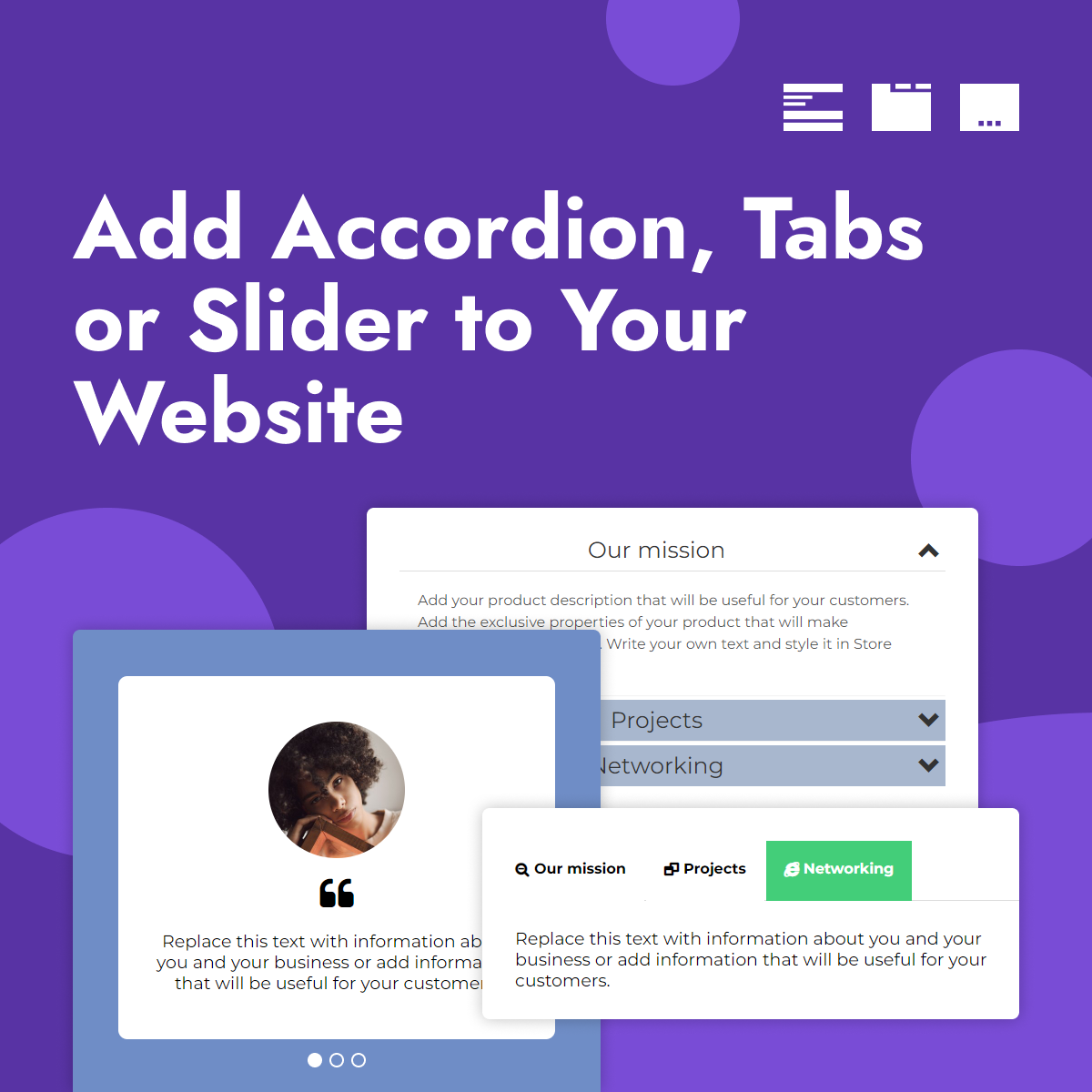
Slider adding banner for website integration
Was this article helpful?
Thanks for your feedback!
More in “11. Advanced” 18 other articles in this category
01. How to use "Scroll to top"?

How to use "Scroll to top"?  When your page is very long you may want to give your users an option to q…

02. How to use "Booka.place"?

How to use "Booka.place"?  Adding Booka.place: Drag and drop "Advanced" from main toolbar; Choose Boo…

03. How to use "Banner"?

How to use "Banner"?  Adding Banner: Drag and drop "Advanced" from main toolbar; Choose Banner co…

04. How to integrate "AdSense"?

How to integrate "AdSense"?  Adding AdSense: Drag and drop "Advanced" from main toolbar; Choose A…

05. How to integrate "Google Calendar"?

How to integrate "Google Calendar"?  Adding Google Calendar: Drag and drop "Advanced" from main to…

06. How to use "Table"?

How to use "Table"?  Adding Table: Drag and drop "Advanced" from main toolbar; Choose Table compo…

07. How to integrate "Zendesk"?

How to integrate "Zendesk"?  Adding Zendesk: Drag and drop "Advanced" from main toolbar; Choose Z…

08. How to integrate "Olark"?

How to integrate "Olark"?  Adding Olark: Drag and drop "Advanced" from main toolbar; Choose Olark…

09. How to integrate "Tawk.to"?

How to integrate "Tawk.to"?  Adding Tawk.to: Drag and drop "Advanced" from main toolbar; Choose T…

10. How to use "Countdown"?

How to use "Countdown"?  Adding Countdown: Drag and drop "Advanced" from main toolbar; Choose Cou…

11. How to use "GetButton"?

How to use "GetButton"?  GetButton allows you to connect to:Facebook Messenger, WhatsApp, Viber, Snapch…

12. How to use "Count Up"?

How to use "Count Up"?  Adding Count Up: Drag and drop "Advanced" from main toolbar; Choose Count…

13. How to use "Smartarget Whatsapp"?

How to use "Smartarget Whatsapp"?  Adding Smartarget Whatsapp: Drag and drop "Advanced" from main …

14. How to add "Blog"?

How to add "Blog"?  Adding blog: Drag & drop "Blog" from main toolbar; Choose blog compositio…

15. How to add category in blog?

How to add category in blog? To add category in blog: Select blog and click "Edit posts" in right to…

16. How to add "Accordion"?

How to add "Accordion"?  Adding accordion: Drag and drop "Advanced" from main toolbar; Choose "Ac…

Up Next
18. How to use "Tabs"?

How to use "Tabs"?  Adding tabs: Drag and drop "Advanced" from main toolbar; Choose "Tabs" compos…

19. How to use "Bookingmood"?

How to use "Bookingmood"?  Adding Bookingmood: Drag and drop "Advanced" from main toolbar; Choose…