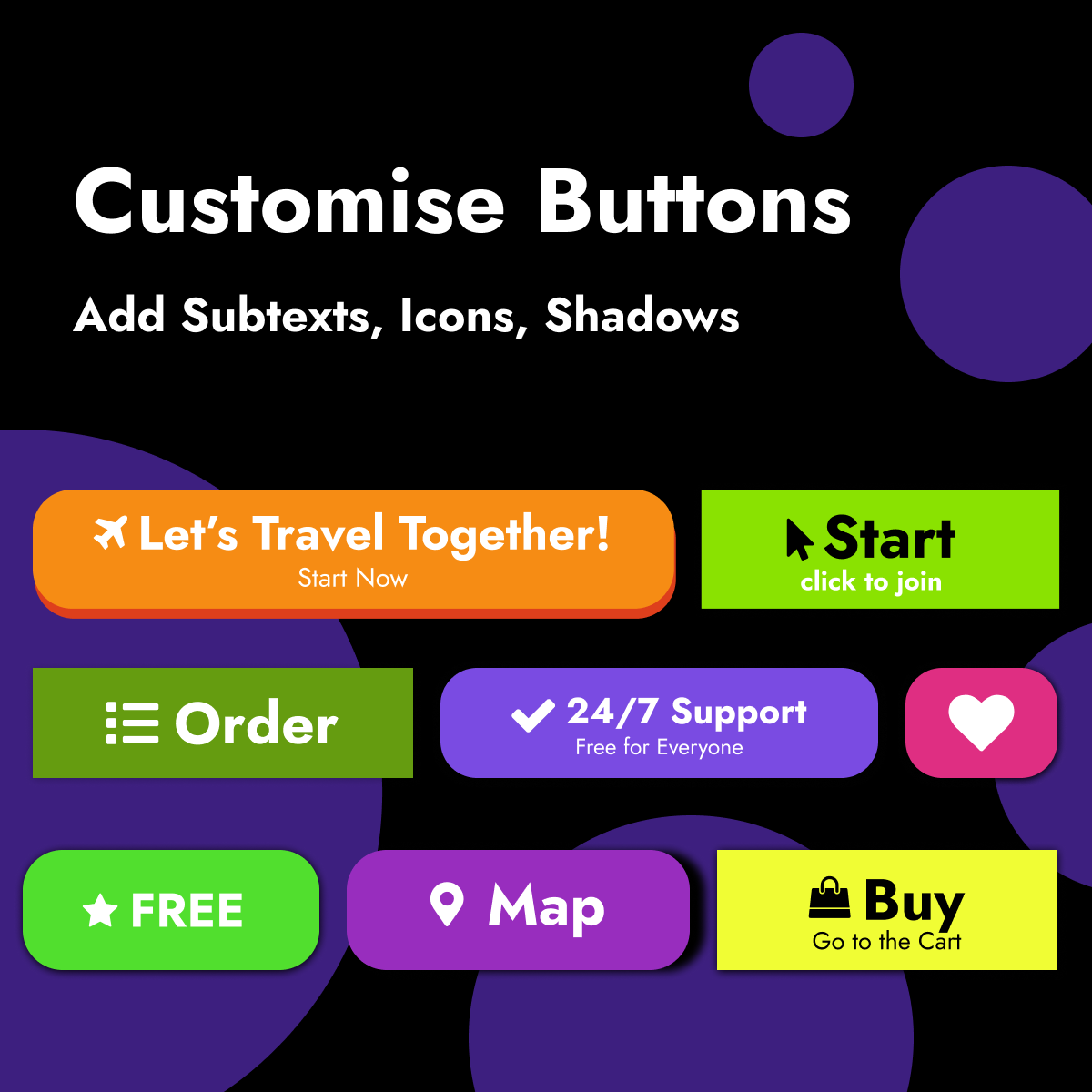



How to use "Button"?
- Adding button:
- Drag & drop "Button" from main toolbar;
- Choose button composition.
- Editing button:
- Write button text in right toolbar's 'Text' section.
- Link:
Select button and click URL in right toolbar's 'URL' section. Write link properties and click "Apply".
- Text font:
Select button and click font in right toolbar's 'Font' section. Adjust text font style, size, line height, align, letter spacing.
- Item Icon:
Select button and click font in right toolbar's 'Item Icon' section. Select icon from the list or use search bar to find exact icon.
Use 'Position' buttons to change icon positioning (left or right).
- Customising button:
- Default / Hover / Active settings:
Set button default style, colour, background, border and shadow options in right toolbar.
- Subtext:
Write subtext, adjust text font, style, colour, and Default / Hover / Active settings in right toolbar.
- Size:
Set button size or "Allow to adjust size automatically" in right toolbar.
- Default / Hover / Active settings:
Important: Make sure your link contains HTTP/HTTPS, for example: https://example.com